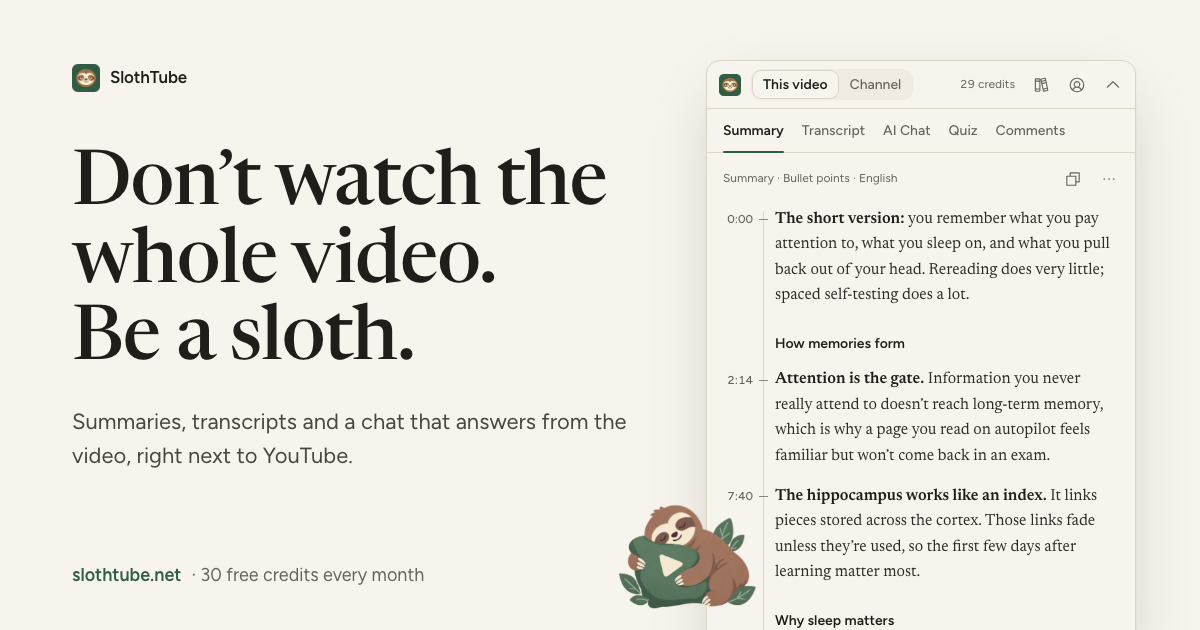

A long YouTube video doesn’t have to mean a long note-taking session. A youtube video summarizer can turn its main ideas into a shorter account, making it easier to review a lecture, talk, or tutorial. It helps you find key points, but it doesn’t replace watching when details, tone, or visual context matter.
That’s useful when a video is dense or you need to revisit its ideas later. The result depends on the source material the tool can access, and supported formats and length limits vary. This guide explains how AI summaries can support study, what to consider about video length and format, and how to get a summary. It also covers transcripts and other ways to work with video content, so you can choose a practical next step without expecting a summary to do more than it can.
Key Takeaways
- Check whether a video has accessible captions, since they can affect whether a tool can create a transcript and summary.
- Review platform and file support before choosing a summarizer; supported sources and formats can vary.
- Look for the steps needed to open or save a summary, and whether access requires an account.
- Use summary length and timestamps to shape your review, then return to the relevant video moments for more detail.
Is there a limit to the video length for summarizing?
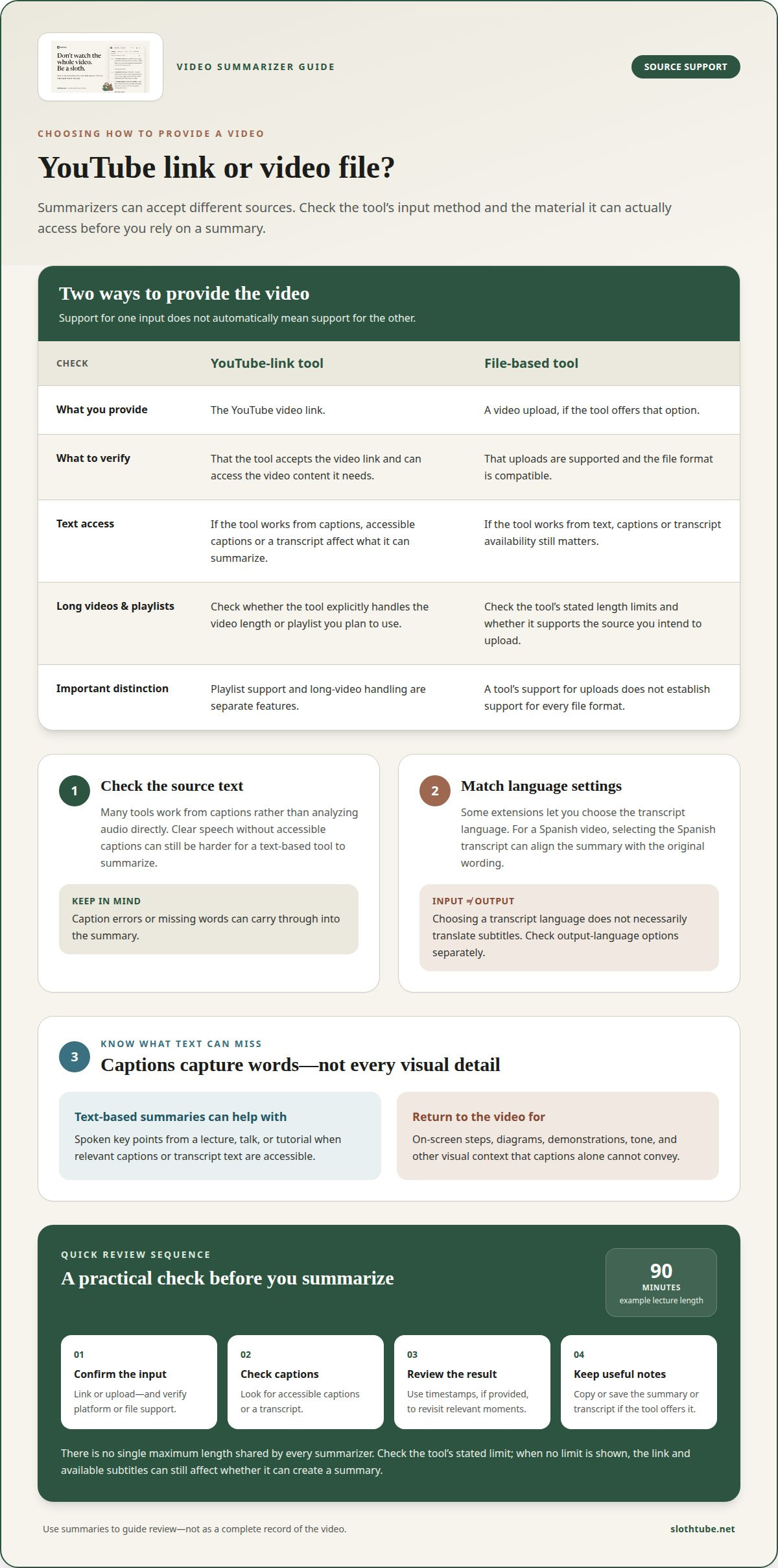
There is no single maximum length shared by every summarizer. The usable length depends on the tool and the video’s accessible text. A 90-minute lecture, for example, may be treated differently across tools. Check the tool’s stated limit before relying on it for a long recording. If no limit is shown, the video link and available subtitles still affect whether it can create a summary.
Many tools work from captions rather than analyzing audio directly. A tool that relies on subtitles may need accessible captions to summarize spoken content. Without them, some tools may have limited access to the spoken content and visual details. A lecture with clear speech but no captions can therefore be harder to summarize than a shorter video with a transcript. Caption errors or missing words can also carry through to the summary.
Language support varies by tool and transcript. Some extensions can summarize videos in multiple languages and let users choose the transcript language. That choice affects the text used for the summary, but does not necessarily mean the tool automatically translates subtitles. For a Spanish lesson, for example, select the Spanish transcript if you want the summary to reflect the original wording. Check separately whether you can choose the output language.
Can YouTube video summarizers create timestamps, key takeaways, and transcripts? Some provide timestamps that link to relevant parts of the video, along with a concise set of key points. A transcript is available when the video has accessible captions and the tool can retrieve them. These features are separate: a summary may be available without a transcript, while timestamps help you return to a specific passage.
To assess a long video, start with its link and check for captions or a transcript. Review the summary, then use any timestamps to revisit details. Some summaries are ready within seconds, but processing time depends on the tool and source text. Save the transcript or summary for later study if the tool offers that option. For a long recording, accessible text often matters more than length alone.
Supported video platforms and file formats
Support depends on how a summarizer processes a video. A YouTube-link tool works from the video link and content accessible on YouTube. A file-based tool needs an upload option and compatible file formats. These are different ways to provide a video, so support for one does not imply support for the other. For a tutorial, first check whether the tool accepts its YouTube link or requires a video file.
Video type matters, too. A lecture with clear speech and captions gives a text-based tool material to process. A tutorial that relies on on-screen steps, diagrams, or demonstrations needs visual context that captions alone cannot convey. A summary may capture spoken key points, but it isn’t a full account of every action shown. Keep watching relevant sections when a lesson depends on what appears on screen.
Which YouTube summarizers support long videos, playlists, and multiple languages? Choose a tool that explicitly accepts the video or playlist link you plan to use. Playlist support and long-video handling are separate features. Some extensions support multiple languages and let you choose the transcript language, but that doesn’t mean every language or playlist is supported.
Format can also refer to the language and structure of the source text. A Spanish video with Spanish subtitles, for example, gives a transcript-based tool Spanish words to process. Choosing the transcript language can help align the summary with those words, but it doesn’t automatically mean the output will be translated. Treat input and output language as separate settings.
Browser access shapes the practical workflow. A browser extension can fit desktop watching, while a mobile browser may handle extensions differently. Before starting, open the video link on the device you plan to use and look for the summary tool’s entry point. For study material, match the format to the task: use a link for a supported YouTube video, and rely on captions when the tool works from text. A YouTube study workflow can turn a video link into written notes for later review.
How do I access the summary after generating it?
Access depends on how the summarizer displays its result. After processing a YouTube video, look for the summary in the tool’s results. A browser extension may show it beside the video, while another tool may open a separate page. Before closing the result, look for options to copy or save the text.
At least one YouTube summarizer is free to use without an account, subscription, or payment. Temporary request limits may still apply, so free access does not always mean unlimited use. If a tool requires sign-up, that applies to that tool, not every summary service.
Which YouTube summarizers are free, and what are their limits? A free-to-use option requires no account or payment, but temporary request limits may apply. These limits can affect how often you generate summaries, rather than whether a particular interview or conference can be summarized.
Most summaries from one free tool finish in 10 to 30 seconds. The time can help you plan a quick review, but it does not measure accuracy. Captions and transcript quality affect what the system can extract. For a conference talk, compare the concise summary with the captions when exact wording matters.
Consider privacy before sharing a result. Some YouTube summaries are public, so don’t assume a summary link is private. Avoid putting sensitive notes in a public summary or sharing its link as though only you can open it. Save a private copy only if the tool provides that option.
Free and paid plans can differ in request limits and features, and details vary by tool. Check what the results page offers, such as a readable summary, transcript access, or a way to revisit the source video. For study, use captions to check a key claim, then keep the summary with your notes if saving is available. This makes later review more useful without treating a quick result as a complete record.
AI-generated YouTube video summaries
A summary tool turns video content into shorter text, usually using captions or a transcript. Its usefulness depends on the source text and the controls available to shape the result.
Summary Generation Steps
Start with a supported video link, then choose the transcript language if that setting is available. Set the summary length or add a prompt when the tool offers those controls. Generate the summary and compare its takeaways with the lecture captions. Timestamps can help you return to relevant moments. For a language lesson, make sure the transcript language matches the speech before relying on its wording.
Editing Generated Summaries
Editing options vary. Some tools let you change the prompt or summary length and generate a revised version. That shapes what the tool writes, but it isn’t the same as editing the finished text directly. Look for editing controls before you begin. If direct editing isn’t available, copy the takeaways into your study notes and refine them there. Keep timestamps beside claims you want to revisit.
A tool can work with multiple languages when it can access the video transcript in that language. Some extensions let users choose the transcript language. That choice guides the text being summarized, but doesn’t necessarily translate the result. For lectures in another language, distinguish transcript language from summary language in the available settings.
What are the best YouTube video summarizer tools in 2026? The best fit depends on your task. Compare transcript access, language choices, adjustable prompts, summary length, and timestamps. For study, those features help you check key takeaways against the video.
Do YouTube summarizer tools comply with YouTube’s terms of service? Terms and tool methods differ, so there’s no blanket answer that applies to every tool. Use tools in ways that respect YouTube’s terms, and avoid copying or sharing content beyond permitted use.
Do these tools store video data or raise privacy concerns? Practices vary, and some generated summaries may be public. Treat summary links as shareable rather than private, and avoid including sensitive notes.
To turn a video into a study aid, generate a YouTube video summary and review its takeaways alongside the source.
SlothTube
SlothTube helps turn YouTube videos into study material when a quick summary isn’t enough. Use a summary to grasp the main ideas, a transcript to revisit the wording, or flashcards and quizzes to review what you’ve learned. With AI video chat, you can ask questions about video content.
These formats give you several ways to work with a lecture or tutorial, from a concise overview to active recall. Choose what fits your next step: scan the summary, return to the transcript for detail, then use flashcards or a quiz to test your understanding.
If you’d like help working with YouTube video content, contact SlothTube.
Make the next video easier to revisit
Before starting a lecture, write down what you need from it: a definition, an argument, or a clear explanation of an idea. This gives your notes a purpose. After watching, mark anything that remains unclear. That question can guide your next study session, instead of becoming another line to reread without context.
A YouTube video summarizer can give you a first pass, but you still decide what deserves your attention. Keep a question beside your notes, and return to the source when the answer depends on an example, a visual detail, or the speaker’s exact meaning. A summary is a guide for focused review, not a substitute for your own understanding.
If you want a practical way to work through study videos, contact SlothTube. Take the next step at a pace that suits your study.
Frequently Asked Questions
Can I choose different summary formats?
Available formats depend on the tool. Some focus on a short overview; others pair summaries with transcripts or study aids. SlothTube offers video summaries, transcripts, flashcards, and quizzes. Choose based on how you’ll use the result: a brief recap may suit revision, while a quiz can help test recall after a lesson.
How accurate are the summaries?
Accuracy depends partly on the captions or transcript used to process the video. Names, technical terms, and figures may be misheard or missing, so treat a summary as a guide, not a word-for-word record. If a lecture summary gives a key date, for example, revisit that passage in the video before using it in an assignment.
Is it free to use?
Free access varies by tool, and some services use paid subscriptions or credit plans. SlothTube offers subscriptions and credit plans for access to its AI video tools. Before choosing a service, consider how often you’ll use it and whether its features fit your study routine. A free option may also have request limits or fewer features.
Can I customize the YouTube summary length or the prompt?
Some tools let you set the summary length or change the prompt, while others use a fixed format. A prompt such as “focus on the speaker’s main argument” can make a recap more useful for a debate lecture. Before generating, check whether you can adjust the request or revise the prompt to create another version.
How much do popular YouTube video summarizer subscriptions cost?
Costs vary by service and plan, so there isn’t one subscription price that applies to every tool. Some use subscriptions, others use credits, and some combine both. SlothTube offers paid subscriptions and credit plans. Compare the access each plan provides with your likely use, such as regularly summarizing lectures or occasionally using study aids.
How to summarize a YouTube video using a URL, transcript, or browser extension?
With a link-based tool, copy the video link, paste it into the tool, and start the summary. If it accepts transcript text, paste the transcript instead. With a browser extension, open the video page and select the extension’s summary control. Then compare the result with the source, especially when a key claim depends on exact wording.
